
Conditions
A condition is a logical expression that controls whether an operation applies to the checkout or not. Conditions essentially ask the question When should an operation apply?. When an operation has multiple conditions, all of them must pass for the operation to apply.
Parts of a condition
Section titled “Parts of a condition”Conditions are broken down into three parts:
- Condition type: what the condition matches on, such as Customer Tags or Destination Country Code
- Operator: how to match the Condition type using the provided Values
- Value inputs: what values the Condition type should match using the Operator
- String condition types accept multiple values — for a positive comparison, only one needs to match (see Building a condition)
- Numeric condition types use Start Value and/or End Value value
- Weight condition types are numeric, but also have a weight Unit value
- Some condition types have no Value inputs at all — currently only the P.O. Box condition types (see P.O. Box operators)
The available condition types depend on the Operation Category. The complete condition type and operator reference is in Condition types.
Building a condition
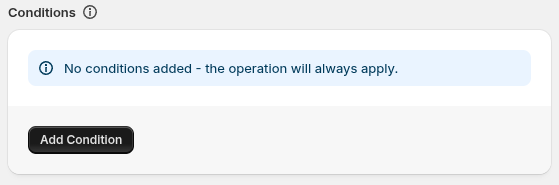
Section titled “Building a condition”To add the first Condition, click the Add Condition bottom at the bottom of the operation’s page.
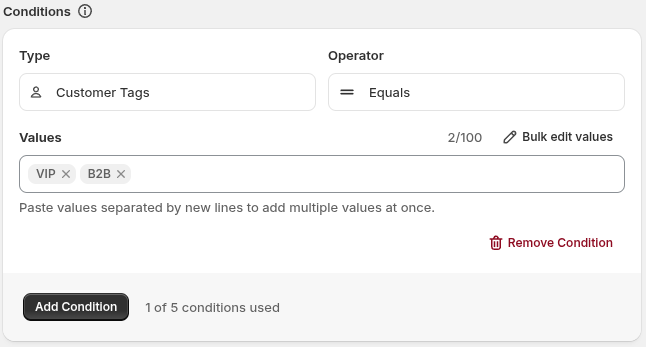
In this example, the condition passes when the customer has either the
VIPtag or theB2Btag. For a positive comparison, only one value in a list needs to match.
Multiple conditions
Section titled “Multiple conditions”When an operation has multiple conditions, they use AND logic: every condition must pass before the operation applies. Said another way: If any conditions do no “match”, then the operation has no effect on the customer’s checkout.
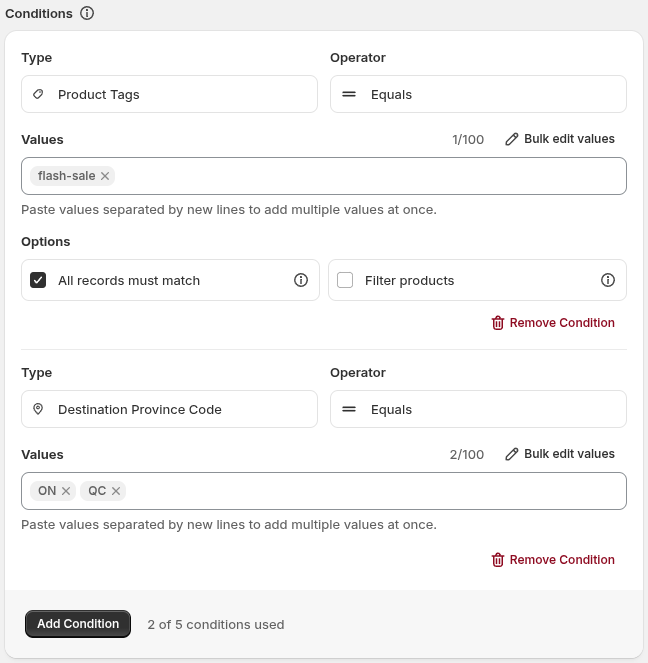
In this example, the two conditions evaluate that the customer is purchasing only
flash-saleproducts and shipping toONorQC.
Operators
Section titled “Operators”An operator is the rule that decides what counts as a match when evaluating a condition — think of it as the verb in the comparison, like equals or is between. Which operators are available depends on the field you picked: text fields use string operators, numeric fields use number operators, and P.O. Box fields have their own pair.
String operators
Section titled “String operators”String condition types, such as Customer Tags or Product Tags, compare text — matching whether a value equals, contains, starts with, or ends with what you enter. String matching is case-insensitive.
P.O. Box operators
Section titled “P.O. Box operators”P.O. Box operators are special because they don’t have any value input - instead they use a pattern to determine if the address is for a P.O. box. See Condition types for how the match works.
Number operators
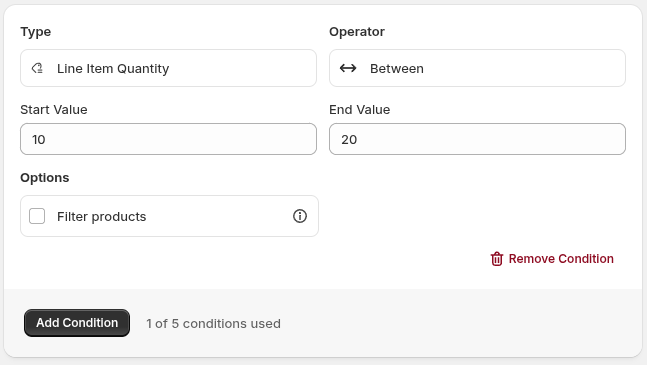
Section titled “Number operators”Number condition types use Between. A number passes when it is greater than or equal to Start Value and less than or equal to End Value. Enter one or both bounds; leaving one side blank makes the comparison open-ended.
Handling weight
Section titled “Handling weight”Line Item Weight is the only condition with a Unit input. Choose the unit you are comfortable using and enter the condition values in that unit. Checkout Commander handles the weight conversion when the condition is evaluated.
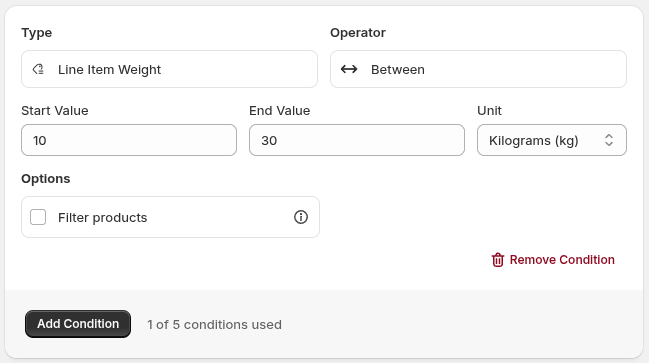
Other number condition types do not show a Unit selector. For monetary (item value) fields, use the shop’s default currency; Checkout Commander converts all prices during execution.
Collection condition types
Section titled “Collection condition types”Some condition types represent a collection of records, such as products in the cart, shipping rates, or payment methods. By default, only one record in the collection needs to pass the condition — see next section for matching on all items..
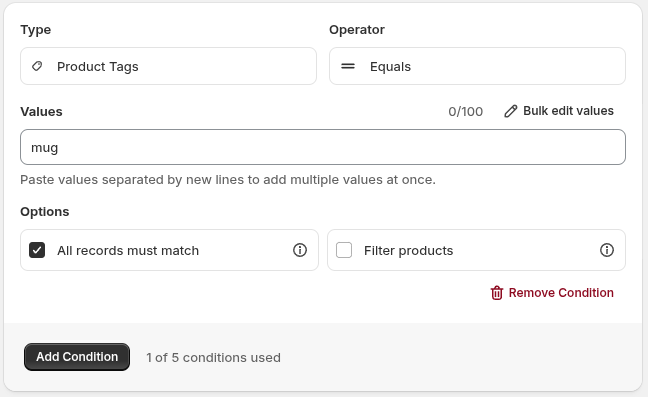
All records must match option
Section titled “All records must match option”Turn on All records must match when every record in the collection must pass. For example, leave it off when you want a condition to pass if a customer orders at least one mug. Turn it on when you want the condition to pass only if the customer ordered mugs and no other products.
Filtering a collection
Section titled “Filtering a collection”Sometimes you want a condition to check only part of a collection, so the entries are first filtered against at least one condition before evaluating the primary condition.
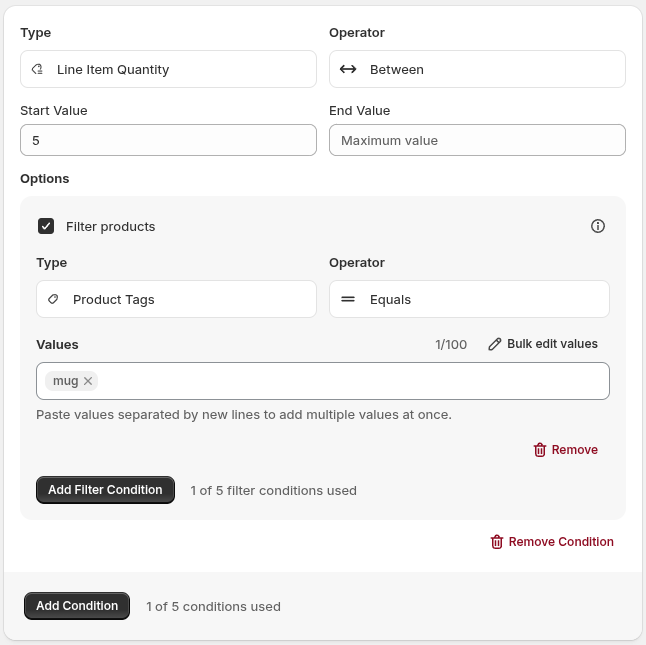
In this example, the condition checks that the customer is ordering a minimum of five mugs, even if the cart also contains other items.
- The customer orders two products: one T-shirt and five mugs.
- Product Filter Conditions narrow the line items to the five mugs.
- The condition checks whether the quantity of those mugs is at least five — the T-shirt isn’t part of this expression at all, since the filter has already excluded it.
Products and shipping rates can currently be filtered.
Need help?
Section titled “Need help?”Conditions are one of the most important parts of an operation, and getting them right can take some experimenting. Contact support if you want help choosing a condition type or expressing the logic.
See also
Section titled “See also”- Condition types: every available condition type and operator.
- Are the conditions matching?: checks to make when an operation does not apply.