
Sort operation
A Shipping Rate Sort operation changes the displayed order of shipping rates at checkout. It does not change a rate’s availability or price.

When to use it
Section titled “When to use it”Use a sort operation when you want to:
- choose where options such as in-store pickup appear in the displayed list; or
- show shipping rates from most expensive to least expensive.
The form
Section titled “The form”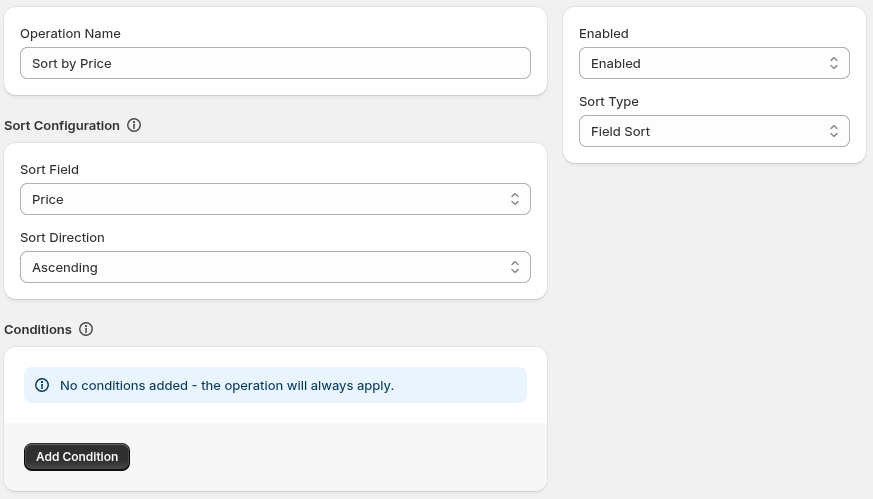
The operation form includes:
- Operation Name: identifies the operation in the app; customers do not see it.
- Enabled Status: controls whether the operation will execute. A disabled operation is saved but does will run.
- Sort Type: controls the sort type that will be performed. See Sort type below.
- Sort Configuration: choose the fields, direction, values, and buckets for the selected sort type.
- Conditions: control when the operation applies.
Sort type
Section titled “Sort type”There are two types of sort operations: Field Sort and Custom Sort
- Field Sort orders rates by Price, Name, or Service Code in Ascending or Descending direction
- Custom Sort orders rates by ranking them in buckets - great for prioritizing or deprioritizing specific rates
Field sort
Section titled “Field sort”Field sort configuration is simply two dropdowns - one to select which field to sort by, and the second for direction.
Custom sort
Section titled “Custom sort”Custom sort requires configuring buckets of rates - rates will be ordered based on the order they appear in the buckets list.
- Select Add Bucket to create a bucket.
- Enter one or more Sort Field values in a bucket
- Values in the same bucket have equal priority.
- Drag the buckets to change their top-to-bottom priority.
- Use Everything Else for rates that do not match another bucket. Its position is part of the custom order.
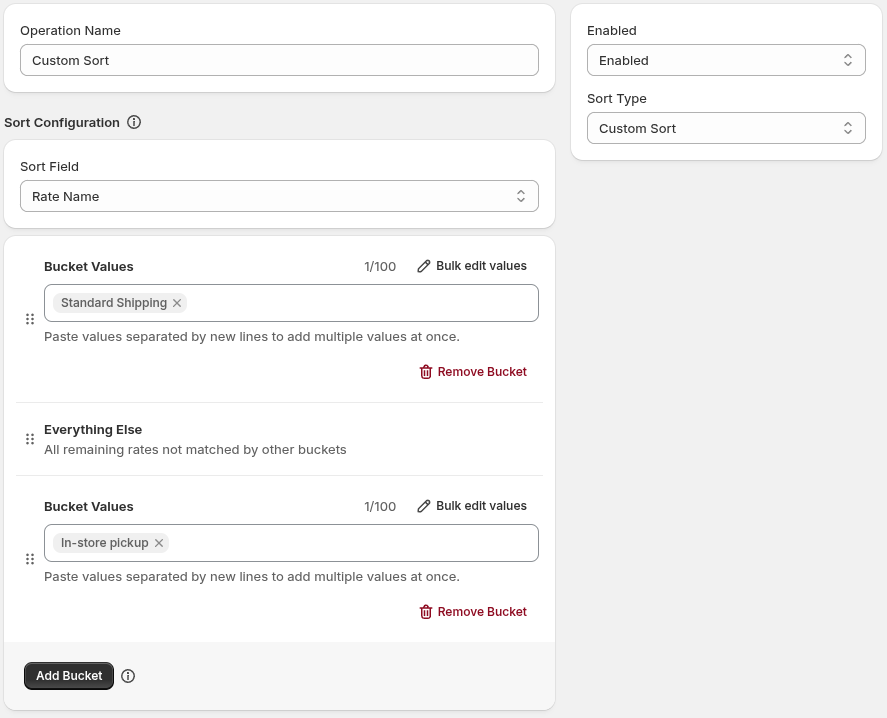
Custom Sort compares each bucket value with the full value of the selected Rate Name or Service Code. Matching ignores capitalization but is not partial matching.
Examples
Section titled “Examples”Make in-store pickup option last
Section titled “Make in-store pickup option last”- Sort Type:
Custom Sort - Buckets:
- Bucket 1:
*(Everything else) - Bucket 2:
In-store pickup
- Bucket 1:
This puts the existing Free Shipping and Standard Shipping rates before In-store pickup in the displayed list. Sorting does not change a rate’s price or whether pickup is available.
Sort from most expensive to least expensive
Section titled “Sort from most expensive to least expensive”- Sort Type:
Field Sort - Sort Field:
Price - Sort Direction:
Descending
See also
Section titled “See also”- Conditions: decide when a sort applies.
- Condition types: see the condition types available to shipping operations.
- Operation didn’t take effect: troubleshoot publishing and matching.