
Settings
Open the Settings page from the app navigation to manage settings for your shop and your user profile.
Shop Settings
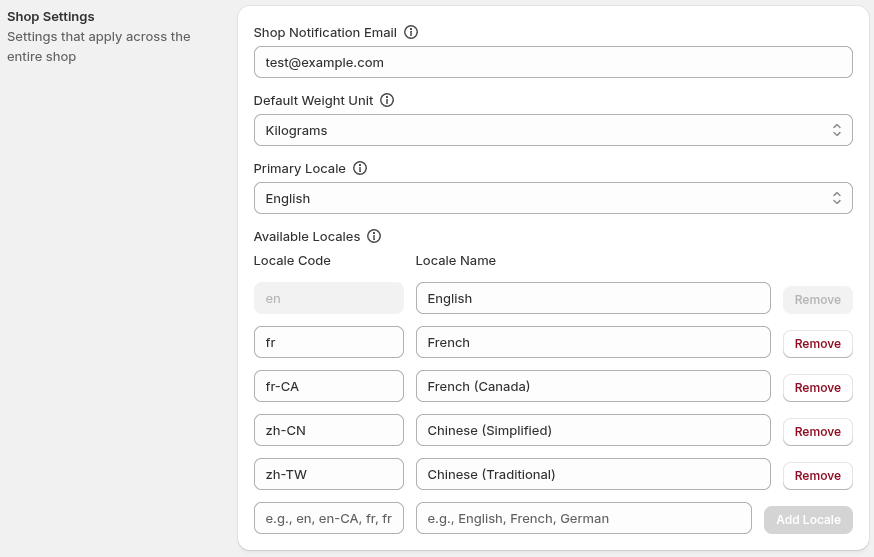
Section titled “Shop Settings”Shop Settings apply directly to the shop and may affect how your operations work. Changes made here will be seen by all shop users.
Shop notification email
Section titled “Shop notification email”The e-mail address that will receive application notifications for your shop, including plan and health notifications. This should be set to the shop owner or and administrator - user email preferences are here. See E-mails we send.
Default weight unit
Section titled “Default weight unit”Choose the unit you want to use when entering weight based conditions, such as Line Item Weight. This setting controls the default weight unit conditions will pre-populate with. Changing it does not rewrite the unit or values in conditions you have already saved.
Locale settings
Section titled “Locale settings”Primary Locale is the shop’s default locale for translations. Available Locales is the list of locales you can choose in rename operations for translations.
Shopify provides the initial locale list. Use the editor in the Available Locales section to add or remove locale codes and names. The reason you may wish to customize your locales in Checkout Commander is it allows more locale configrations than Shopify. I.e. Allowing for fr-CA for French Canadian specific translations.
Some locales are locked and can’t be removed or have their code changed: the Primary Locale, and any locale currently used by a translation on a shipping or payment rename operation.
Profile Settings
Section titled “Profile Settings”Profile Settings apply to the current user signed in to the Shopify Admin.
Application Notifications
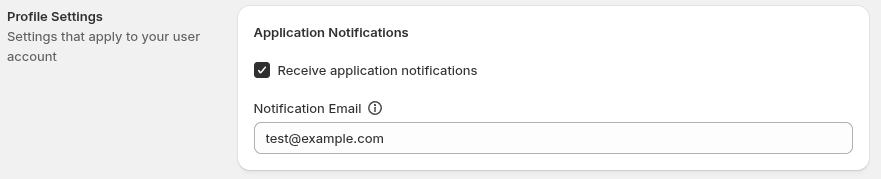
Section titled “Application Notifications”Turn application notifications on or off for your profile. When enabled, you can receive transactional notifications at your Notification Email address. See Emails we send.
Notification Email
Section titled “Notification Email”The email address that will receive application notifications. This address can be different from the Shop Notification Email - they receive the same e-mails, but this one is is for the user specifically.
Marketing Preferences
Section titled “Marketing Preferences”Marketing Preferences are optional. Click the Manage marketing preferences button to open the marketing consent dialog. You can choose Product Updates, Special Offers, and Educational Content as desired, and optionally provide an Marketing Email address. Marketing Email is separate from both notification email addresses and is used for marketing messages only when you subscribe to a topic. Select Save in the dialog; select Cancel or close it to discard changes there.
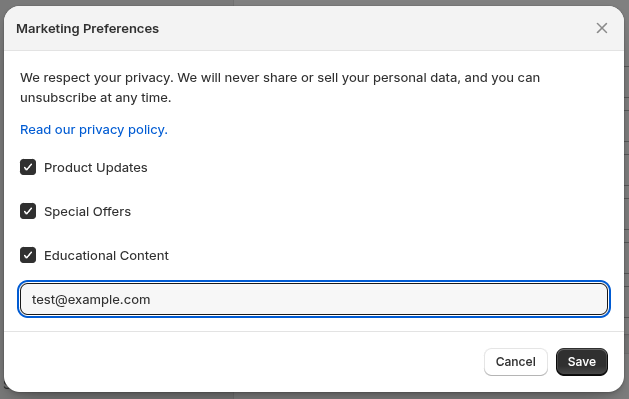
You can return to this modal at any time to change your marketing e-mail preferences later, and the changes take affect immediately. See Marketing emails for more information.
Saving settings
Section titled “Saving settings”Select Save on the Settings page to apply changes to Shop Settings and Profile Settings. Select Discard to reset unsaved changes. Marketing Preferences have their own Save action in the dialog as consenting to marketing email communications requires it’s own distinct form and action.
See also
Section titled “See also”- Emails we send: learn which addresses receive transactional and marketing email.
- Locales: learn more about how Locales work