
Hide operation
A Shipping Rate Hide operation changes which shipping rates customers can see at checkout. It simply changes the visibility of existing shipping rates.

When to use it
Section titled “When to use it”Use a hide operation when you want to:
- hide certain shipping rates based on cart contents
- hide certain shipping rates that are not suitable for a destination or customer
- hide shipping rates except for lowest-priced or highest-priced in a group of rates
The form
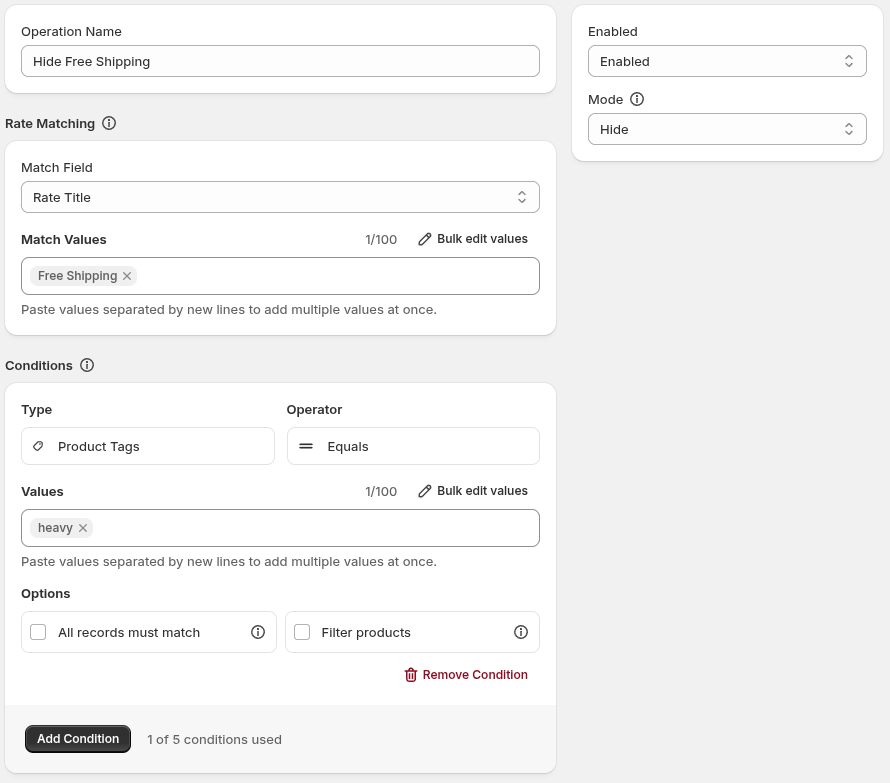
Section titled “The form”The operation form includes:
- Operation Name: identifies the operation in the app; customers do not see it.
- Enabled Status: controls whether the operation will execute. A disabled operation is saved but does will run.
- Mode: controls the mode the operation executes in. See Modes below.
- Rate Matching: this section controls what rates will be hidden (or shown).
- Conditions: control when the operation applies.
Rate Matching
Section titled “Rate Matching”Controls what shipping rates will be hidden (or shown) in the checkout. Set the Match Field to the field the Values input will match on - this can be Rate Title or Service Code. When an entered value matches the corresponding match field, the rate will be hidden (or shown).
Matching uses exact equality. The complete current title or code must match, including capitalization and spaces. Matching is not partial and does not use contains or pattern matching.
Match fields
Section titled “Match fields”- Rate Title will match rates by their name
- Service Code will match rates by their service code - this value is set by your shipping rate provider. A service code is a unique indentifier string for a specific shipping service or rate option. I.e.
usps_priorityorfedex_ground
It is recommended to use the default Rate Title; use Service Code if you use a rate provider where the rate name varies.
Hide operations have different “modes” they can operate in which changes their functionality.
Hide mode is the default and most sensible mode - it simply hides matched rates.
Show mode is the same as Hide mode, except it inverses the condition logic. When all conditions pass, matched rates are made visible rather than hiding them. When the conditions do not pass, matched rates are hidden.
The benefit to this mode is the condition logic can be written more succinctly with how we understand the problem being solved. Example: Offering “Free Shipping” on orders $50 or more:
- With Hide mode, you write the condition as “Line Item Value is less or equal to $49.99”
- With Show mode, you write the condition as “Line Item Value is greater than or equal to $50”
Lowest
Section titled “Lowest”Lowest compares the matched shipping rates and hides all of them except the cheapest. Unmatched rates are unaffected.

Highest
Section titled “Highest”Highest compares the matched shipping rates and hides all of them except the most expensive. Unmatched rates are unaffected.

Examples
Section titled “Examples”Show a rate at a line-item value threshold
Section titled “Show a rate at a line-item value threshold”To offer a Free Shipping rate when the customer is purchasing $50 or more of products.
- Match Field:
Rate Title - Match Values:
Free Shipping - Mode:
Show - Condition Type:
Line Item Value - Condition Operator:
Between - Condition Start Value:
50 - Condition End Value: leave blank
Keep all highest-priced matches
Section titled “Keep all highest-priced matches”Some products are considered “heavy” and have increased shipping costs - Standard Shipping should be excluded if it’s cheaper than Heavy Items Shipping. Only the most expensive of the two will be shown to the customer.
- Match Field:
Rate Title - Match Values:
Standard Shipping,Heavy Items Shipping - Mode:
Highest
See also
Section titled “See also”- Conditions: build optional conditions and combine them with AND logic.
- Condition types: see the condition types available to shipping operations.
- Operation didn’t take effect: troubleshoot publishing and matching.