
Managing your plan
The Plan Management page lets you pick the subscription plan that best suits your shop — and change your mind later, whether that’s upgrading, downgrading, or switching your billing interval. Compare plan prices and capabilities on the Plans page.
Selecting your first plan
Section titled “Selecting your first plan”When you first install Checkout Commander, you’re taken to plan select page automatically. Choose a plan by clicking the Upgrade button on the desired plan card. If a plan is unavailable, see Unavailable plan changes. See Plans and Active operations limit to help you decide which one fits.
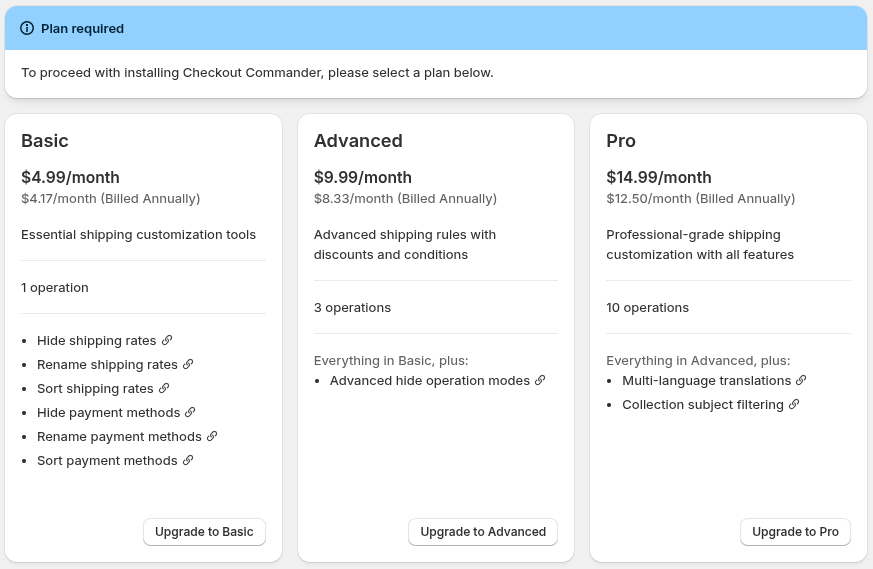
Selecting a plan opens a modal to confirm your billing interval and price. Acepting the plan selection modal redirects you to Shopify to approve the subscription charge — see Activating a plan below for what happens next.
Changing your existing plan
Section titled “Changing your existing plan”If you already have an active plan, you can downgrade, upgrade, or change its billing interval any time from the Manage Plan page.
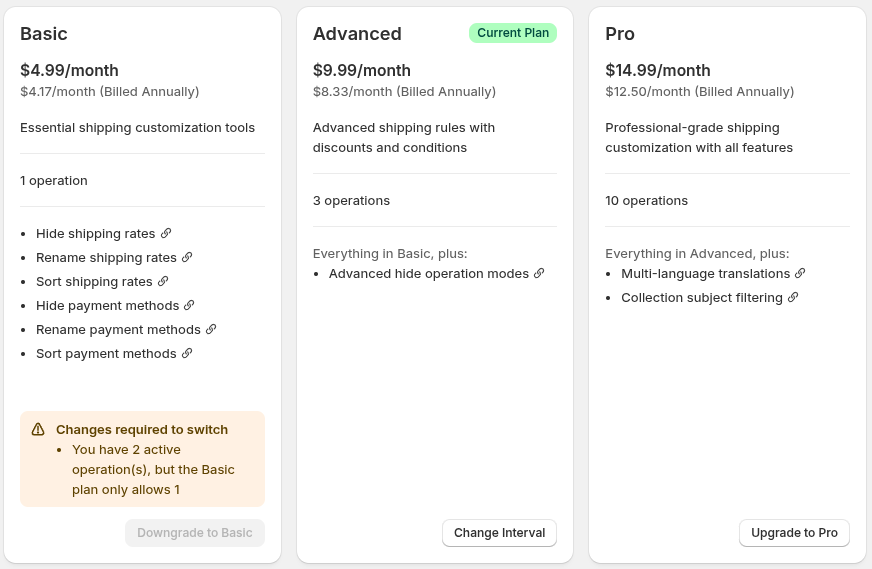
The screenshot above shows an example shop currently enrolled in the Advanced plan.
- The Current Plan badge identifies the plan you use now.
- If a plan is unavailable, its action is greyed out and the card shows a Changes required to switch explanation — see Unavailable plan changes.
- Click Change Interval on your current plan to change the billing interval
- Click Upgrade or Downgrade to switch to another plan
Confirming your choice redirects you to Shopify to approve the subscription charge — see Activating a plan below for what happens next.
Activating a plan
Section titled “Activating a plan”Shopify shows the recurring charge for approval. Review it and select Approve. You’ll return to Checkout Commander once Shopify confirms the charge, and your plan becomes active immediately, with its capabilities and active-operation allowance available right away.
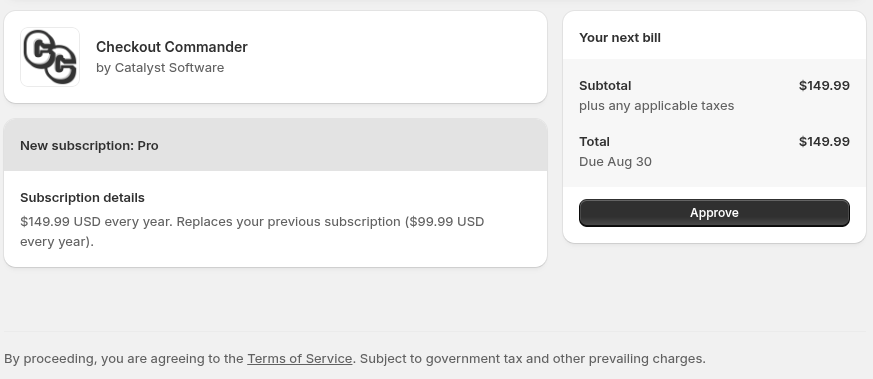
Activating a plan doesn’t affect operations you’ve already saved — those still follow their own publishing process with Shopify. If a saved change doesn’t seem to be reflected at checkout, see Operation didn’t take effect.
Declining the charge
Section titled “Declining the charge”If you decline the Shopify charge, the result depends on whether you already have an active plan or not:
- If this is your first paid plan, no plan is activated. You remain at plan selection until you select and approve a plan.
- If you already have an active plan, it stays active. The requested upgrade, downgrade, or interval change is not applied.
Pending plan
Section titled “Pending plan”If you leave a plan change without approving or declining the Shopify charge, it stays pending. Until you decide, opening Checkout Commander will keep sending you back to the charge approval screen. Finish or decline the charge to continue. If the approval screen is no longer available, return to the Plan Management page or contact us.
Unavailable plan changes
Section titled “Unavailable plan changes”When a plan action is greyed out, its card shows a Changes required to switch explanation — read it to see why. You may need to disable enabled operations or remove a capability that the target plan doesn’t include before trying again. See Plans and Active operations limit.
Free trial
Section titled “Free trial”The first paid plan you select includes a 14-day free trial. When trial time remains, the number of days appears below the plan cards on the Plan Management page.
The free Developer and Shopify Partner plans do not create a Shopify subscription and do not use this trial.
Expiring plans
Section titled “Expiring plans”If a plan has an expiry date, the Plan Management page shows a warning with the expiry date. Plans can have an expiry date when a Partner Developer shop converts into a live shop — see Development-store access for details. Select and activate a supported plan before the expiry date to avoid service interruption. After the plan expires, Checkout Commander has no active plan and your checkout customizations will be suspended until a new plan is activated. See Plan and billing and Emails we send.
Uninstalling to cancel
Section titled “Uninstalling to cancel”Uninstalling Checkout Commander cancels the Shopify subscription immediately. You can uninstall from the top-right ellipsis menu while the app is open, or from Apps in Shopify admin. See Shopify’s guide to uninstalling apps.
Your operations and settings remain available if you reinstall Checkout Commander again. After reinstalling, select and activate a qualifying plan when prompted, and your operations will begin working again. See Selecting your first plan.